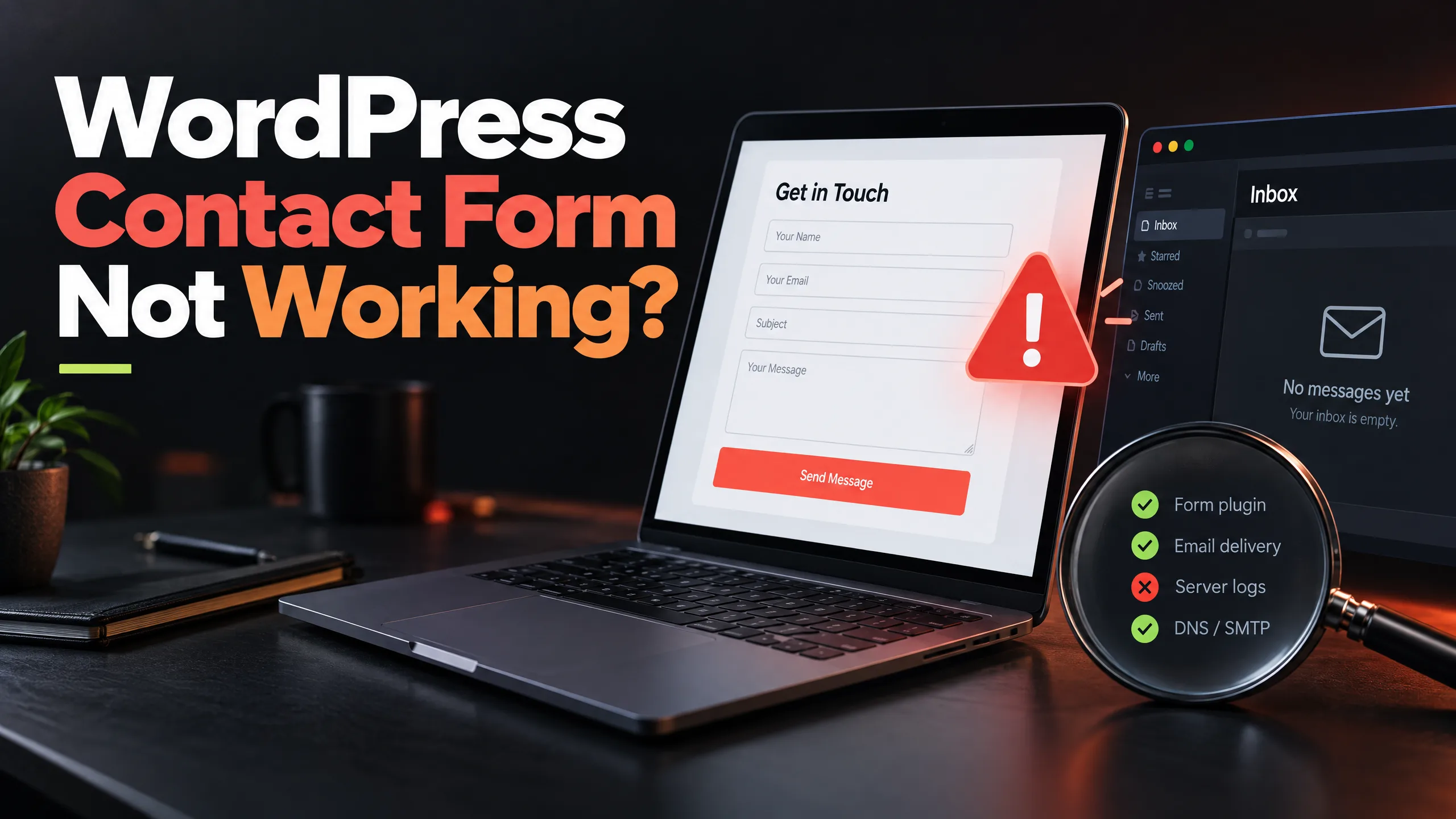
A contact form can look perfectly normal and still lose every message sent through it. The button works. The visitor sees a thank-you note. Nobody in the business receives an email.
That is why a WordPress contact form not working problem can sit unnoticed for days. The website owner tests the page, sees no error, and assumes the enquiry went through. Meanwhile, a potential customer is waiting for a reply that will never arrive.
Start with the path from the form to the inbox. Do not replace the form plugin on the first attempt.
First, find out what “not working” means
There are a few different failures hiding behind the same complaint: the form does not submit, the visitor sees an error, the form says it was sent but nothing arrives, the message lands in spam, the notification goes to an old address, or the confirmation message is unclear.
Ask someone to complete the form using a real test message. Record what appears on the page and check the inbox, spam folder, and any form-entry area inside WordPress. A screenshot of the result is useful if another person will investigate the problem.
A form that fails visibly needs a different check from a form that quietly drops mail.
Check the recipient email before touching plugins
This sounds obvious. It is also one of the quickest things to miss.
Open the form notification settings and check the recipient address character by character. Look for an old staff address, a typo, a personal inbox nobody checks, or a domain email that is no longer active. Review the reply-to field as well. Some forms appear to send successfully but make it difficult to reply to the person who completed them.
If the website changed hands, the form may still be connected to the previous owner’s address. If the business moved from one domain to another, an old mailbox may be receiving the enquiries without anyone watching it.
Do not publish a customer’s message while testing. Use a simple test submission and remove unnecessary personal information afterwards.
Look in spam, but do not stop there
A missing message may be sitting in the junk folder. Check the recipient inbox, the domain email provider, and any security or filtering service between the website and the mailbox.
If one test message appears in spam, that is a useful clue. It does not mean the form is fixed. A future enquiry may be rejected or disappear into a different filter.
The website should send mail through a properly authenticated route where possible. That usually means reviewing the domain’s email setup and using a reliable SMTP service rather than relying on the server’s default mail function.
WordPress mail delivery is often the real problem
WordPress can hand a message to the server and still fail to deliver it reliably. The form plugin may report success because the submission process completed—not because the recipient opened the email.
An SMTP setup gives the website a clearer delivery path and produces better information when something goes wrong. The exact configuration depends on the hosting provider, domain email, and mail service being used.
After changing mail settings, send more than one test. Check the recipient inbox, the sender address, the reply-to behaviour, and the form’s stored entries if the plugin supports them.
Do not use a random sender address that does not belong to the website domain. The reply-to address can hold the visitor’s email while the sender remains a controlled business address.
Review the form fields and validation
Sometimes the email system is fine and the form itself is rejecting the submission.
Check required fields, dropdown values, consent boxes, file-upload limits, phone-number rules, and messages displayed after an error. A visitor may be filling in the form correctly while the validation expects a format nobody understands.
Open the form on a phone. Try it with a short message and then a longer one. Check what happens when a required field is empty. If the error appears at the top of a long page, the visitor may not notice it and may assume the button is broken.
A good form tells people what needs fixing without making them start again.
Test spam protection without blocking real enquiries
Spam controls are useful until they become the reason genuine visitors cannot submit a form.
Review CAPTCHA settings, honeypot fields, rate limits, blocked countries, and security-plugin rules. A recently added protection layer may be stopping submissions before the form plugin records them. Check the spam or blocked-entry area before deciding that no one is trying to contact the business.
The answer is not always to remove protection. It may be to adjust the rule, update the integration, or replace a broken script. Test from a normal browser and a mobile connection after making a change.
Check for a plugin or theme conflict
If the form worked last month and stopped after an update, note what changed. It could be the form plugin, a security plugin, a caching tool, the theme, a page builder, or a server setting.
Do not deactivate several live plugins at once on a busy business website. That makes the result difficult to interpret and can create another problem. A safer process uses a staging copy when available, records each change, and tests the form after each relevant step.
Look for browser-console errors, JavaScript conflicts, failed network requests, and broken scripts on the page. These details are useful to a WordPress developer even when they are not meaningful to the site owner.
Caching can hide the fix
A form page may be cached with an old script, old security token, or outdated form configuration. Clear the relevant page cache after changes, then test in a private browser window or on a different device.
Do not clear every cache blindly if the website has a documented performance setup. Identify the page cache, CDN, browser cache, and plugin cache involved in the form path. A form that works for the logged-in administrator may still fail for a normal visitor seeing a cached page.
Make the confirmation useful
A working form is not finished when the email arrives.
The confirmation message should tell the visitor that the request was received and what happens next. If the business usually replies within one business day, say so only if that expectation is real. If the first reply may ask for a drawing, product code, project details, or a better time to talk, explain that without making promises the team cannot keep.
Set up an internal alert as well. Someone should know when a message arrives, especially if enquiries are shared across a small team.
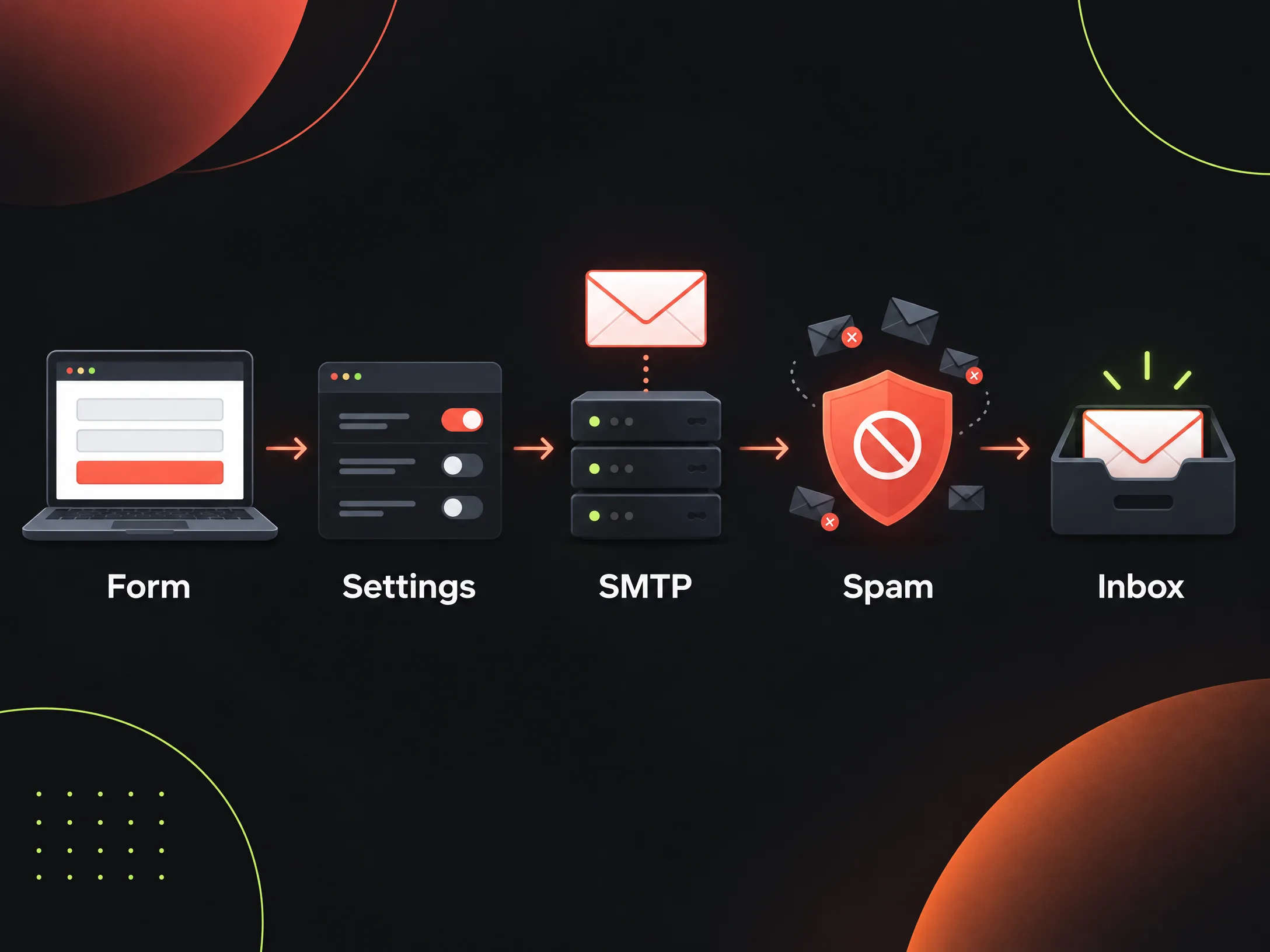
A simple WordPress contact form test routine
Run this check after plugin updates, mail changes, redesign work, and domain changes:
- Submit the form from a phone.
- Submit it from a desktop browser.
- Check the visible success or error message.
- Check the intended inbox and spam folder.
- Confirm the sender and reply-to fields.
- Review the stored form entry, if available.
- Test the link or attachment in the notification.
- Record the date and result so the next failure has a starting point.
This is the practical difference between occasionally clicking a button and having a WordPress maintenance checklist for a small business.
When to call a WordPress developer
Get help when the issue involves DNS or email authentication, a plugin conflict on the live site, missing backups, a failed update, custom JavaScript, a server error, or a form that handles sensitive information.
Also ask for help if the website has been silently losing enquiries. The visible form may be only one part of the problem. Delivery logs, hosting mail settings, security rules, and recent changes may need to be reviewed together.
A useful WordPress maintenance service for small business should explain what is checked, what access is needed, and what happens when an update causes a problem. It should not promise that every website issue can be fixed with one plugin.
For ongoing support, see the WordPress maintenance service for small businesses.
Questions small-business owners ask
Why is my WordPress form showing success but sending no email?
The form may be completing correctly while the website’s mail delivery fails. Check the recipient address, spam folders, stored entries, SMTP or authenticated mail setup, and recent security or plugin changes.
Should I replace the contact form plugin?
Not immediately. First identify whether the failure is in the form fields, notification settings, mail delivery, spam protection, JavaScript, caching, or hosting. Replacing a working plugin can hide the original cause.
How often should I test a WordPress contact form?
Test it after plugin, theme, hosting, domain, email, security, and redesign changes. For an important business form, a monthly test is a sensible habit, especially when no enquiry tracking is in place.
Can a small business fix this without a developer?
Some checks are simple: recipient address, spam folder, stored entries, and visible validation errors. Email authentication, DNS, server mail, plugin conflicts, and live-site recovery are better handled by someone who can test safely and restore the site if needed.
Before closing the browser, send one test message from a phone and wait for the reply in the real inbox. A green success message on the website is not proof that the conversation reached the business.